

The Loyalty platform allows marketers to create content for different types of platform assets, such as Offers, Rewards, and Challenges. In many cases, this content is displayed to Members via a website or branded app.
Marketers can use the Content Editor screen to build content for different assets. This screen provides a user-friendly interface for creating and manipulating content and other visual elements, and is intended for use by non-technical users.
Access
For all content asset types, the Content Editor is accessible as follows:
-
Navigate to the Details screen for the desired asset. For example, if you need to define the content for a specific Offer, you would navigate to the Offers screen, then search for and select the desired Offer to view the Offer Details screen.
-
From the Details screen of the desired asset, select the Display tab.
-
Click Edit. The Content Editor is displayed in a separate browser tab or window.

Layouts and Templates
The Content Editor displays a series of one or more Layouts. A Layout represents a specific context in which content is displayed to a Member, such as a website, mobile device, or email message, for example. A Layout defines the size and shape of the content, as well as the formatting and visual appearance of its interface elements, such as text fields, buttons, and images.
For more information on Layouts, please see
Typically when a Member-facing environment (like a mobile app or a website) is getting the asset details from Loyalty via an API, that API call will be configured to target one Layout specifically, and to display the content of that one Layout.
The following example shows two Layouts: Narrow Email Section and Mobile Detail. The Layouts have slightly different sizes and configurations, depending on the context of where the content is displayed to the Member.
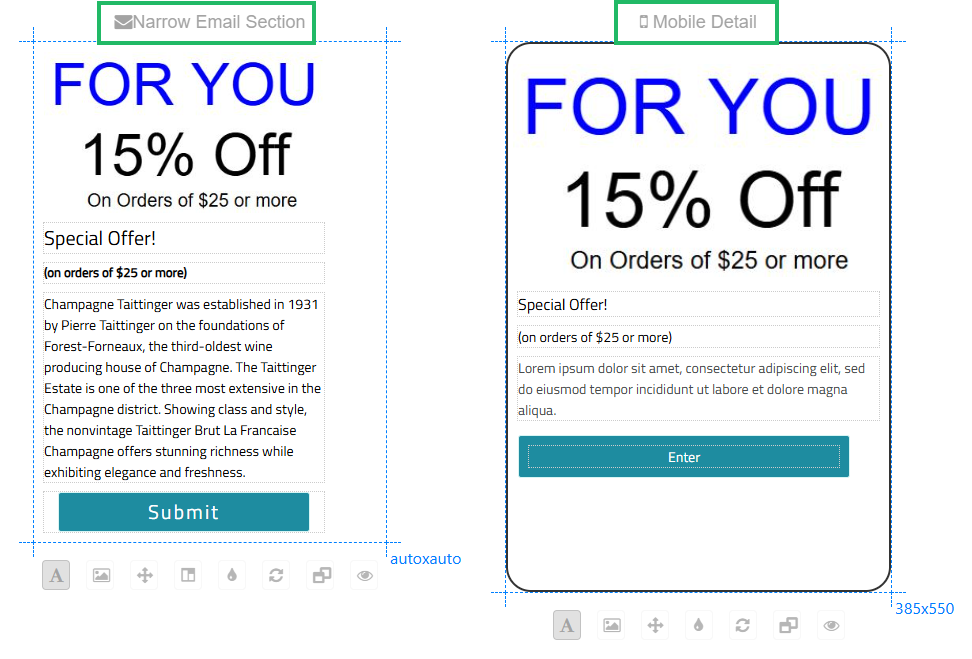
Layouts are configured as part of the Template Set. A Template Set is an HTML document that controls what layouts, styles, and content elements are available to the marketer when they are creating content for an asset. Loyalty supports a default Template Set for each platform asset type, but these Template Sets can also be modified to meet your specific business requirements.
A Layout can be designed with multiple variations (referred to as Templates), which provide the marketer with options when using that Layout. As with Layouts, the Templates are configured as part of the Template Set. If a Layout has been configured with multiple Templates, a Template selector is displayed beneath the Layout. For more information on selecting a Template, please see
Master Content
The Content Editor supports the concept of Master Content. This feature is useful if you have multiple Layouts that share similar information. Instead of having to populate each Layout individually, you can enter the desired shared content as “Master Content.” The platform will then automatically populate all Layouts with the Master Content.
For example, if all your Layouts have the same Header value, you can simply enter that Header once as Master Content. All Layouts will pick up this value from the Master Content, and populate their respective Header fields with that value.
Please note that you can always “override” the Master Content within an individual Layout, and enter content unique to that Layout.
Please see Working with Master Content for more information.
Quick Links
 Working with Layouts Working with Layouts |
 Working with Images Working with Images
|
 Working with Text Fields Working with Text Fields |
